Creating a report with a template in Clean Claims - Mobile

Creating a report with a template in Clean Claims - Mobile

Creating a report with a template in Clean Claims - Mobile

Made by Paul Silliman with Scribe

Please reach out to support@cleanclaims.com with any questions or issues.

1. Click Project Actions
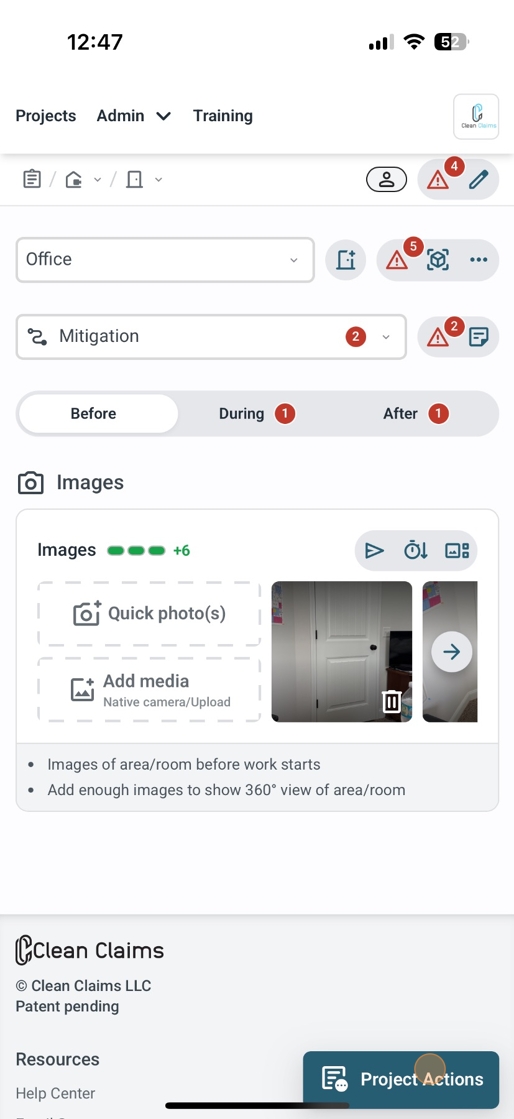
2. Tap Report
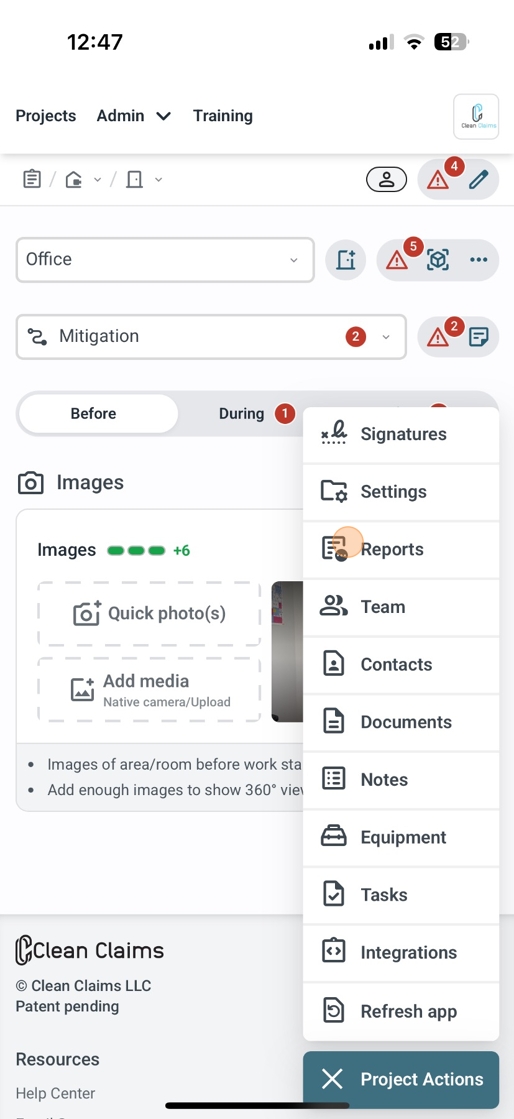
3. Tap the template icon
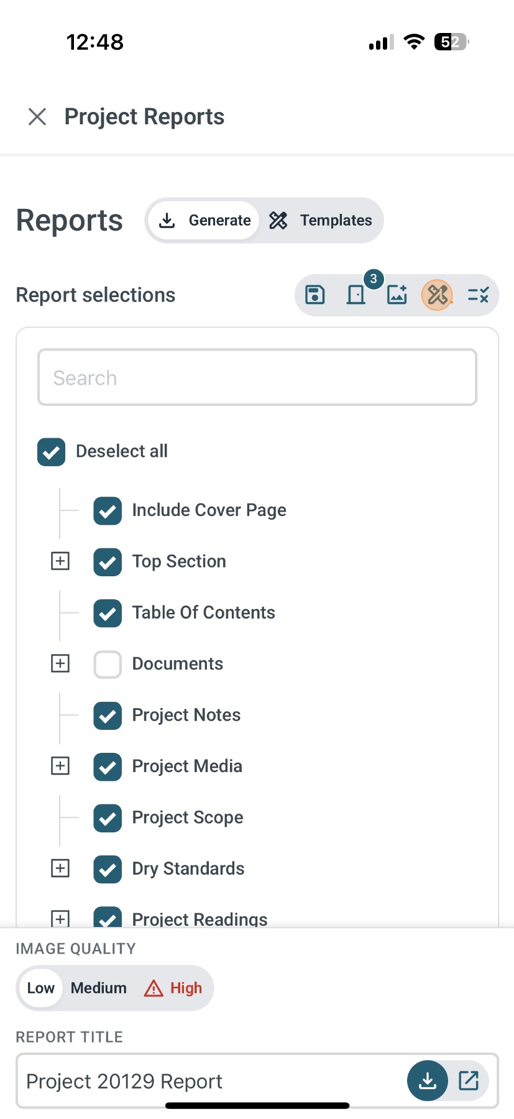
4. Select the report template you want to use
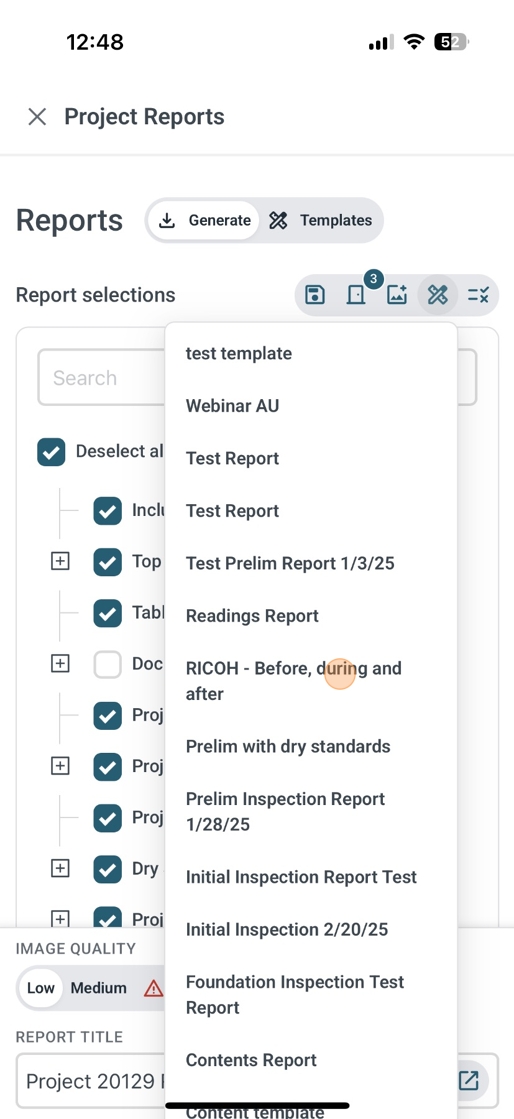
5. Select your image quality
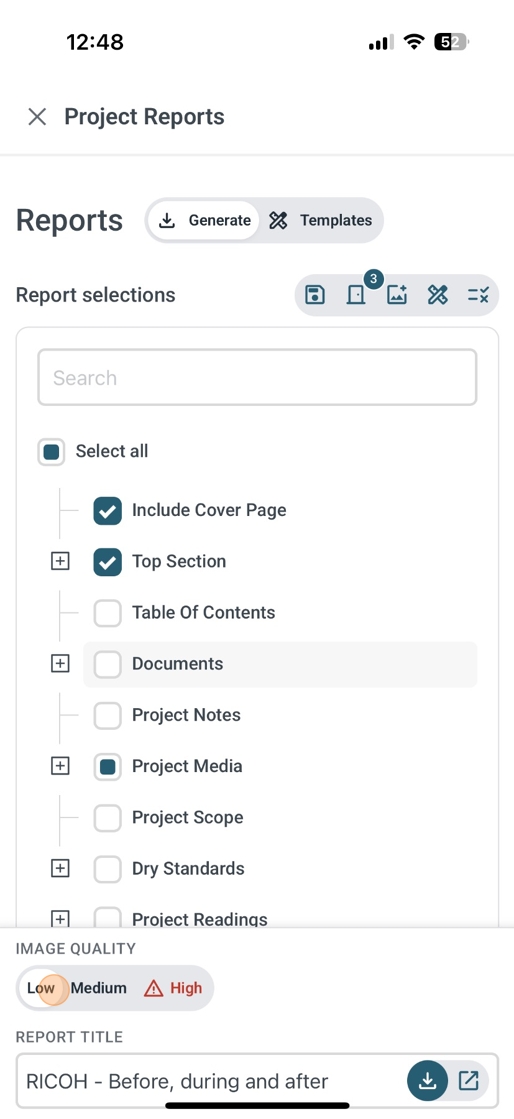
Tip: Tip! You can alter the report name by clicking the report title


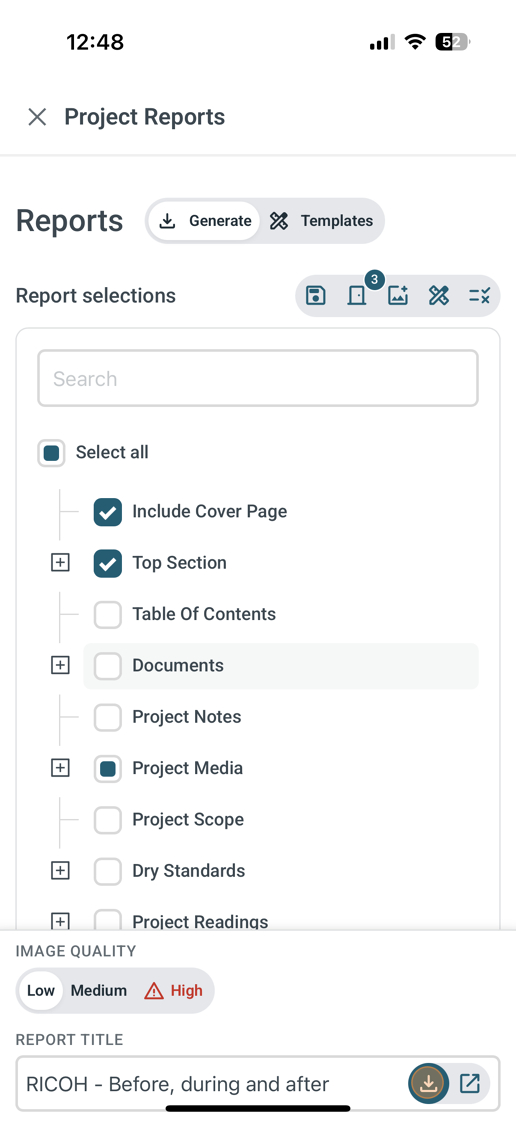
6. Click download to generate the report
    • Related Articles

    • Create a Custom Report Template in Clean Claims

      1. Navigate to https://app.cleanclaims.com/ 2. Click Admin 3. Click Project Configuration 4. Click Report Template Tip! You can modify existing templates or create new templates from this screen 5. Click Create Template 6. Select which field you want ...
    • Clean Claims Feature - Photo Quality

      <br> Selecting Image Quality in Final Reports 1. Accessing the Final Report Feature Log in to the Clean Claims system at app.cleanclaims.com . Navigate to the section for generating final reports. 2. Selecting Image Quality ...
    • Adding the Clean Claims App to your Mobile Device

      Creating a Progressive Web App (PWA) allows users to access the web application just like they would a native mobile app, providing a high-quality user experience. Here's how users can add app.cleanclaims.com as a PWA on their devices using Chrome ...
    • New Clean Claims Photo Selector Overview 📸

      <br> Procedure for Selecting Photos in Reports 1. Access the Reports Section Log in to the Clean Claims platform. Navigate to the 'Reports' section. 2. Select Report Images Locate the top toggle labeled 'Select Report Images'. Click on ...
    • Project Reports in Clean Claims

      This guide will walk you through generating reports in your Projects in Clean Claims